
Video Speed Changes Explained: Pitch, Judder, File Size
By Mark Fulton · 2026-09-16 · 10 min read
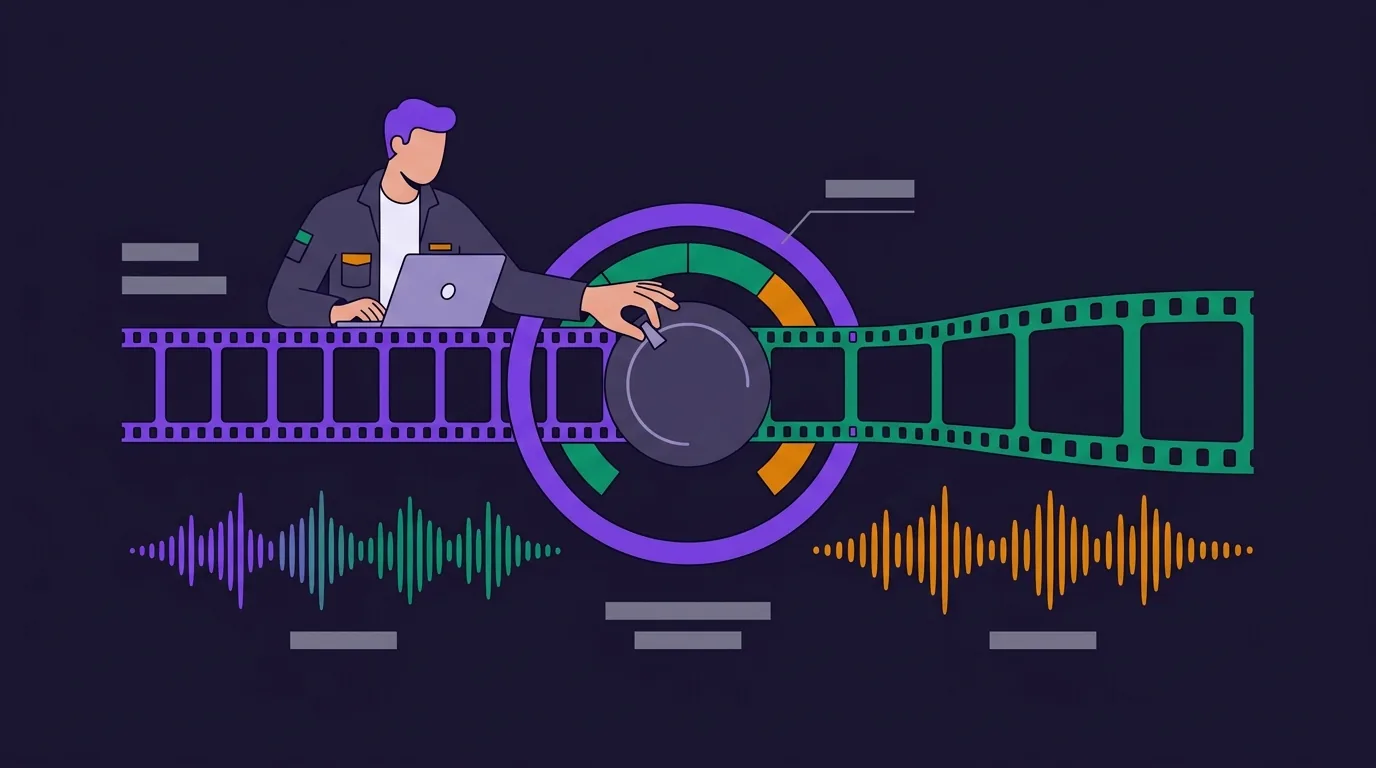
Changing a video's speed is two separate operations that most tools perform silently and never explain. The picture is re-timed by rewriting each frame's presentation timestamp, so no new frames are created and none are improved: speeding up throws frames away, and slowing down holds the frames you already have on screen for longer. The audio has to be time-stretched rather than replayed faster, otherwise every voice pitch-shifts upward. Get the second part wrong and a 2x lecture sounds like a chipmunk. Get the first part wrong and 0.5x slow motion stutters. You can do both correctly in your browser: VidClip's change video speed tool time-stretches the audio and never uploads your file.
Below is what each of those operations actually does, why slow motion from ordinary footage will never look like slow motion shot properly, and what happens to the file size when the duration changes. There is a worked calculation you can redo with your own clip's numbers.
What happens to audio when you change speed?
There are two ways to make audio play faster, and they produce completely different results.
The naive one is resampling. You take samples recorded for playback at 48,000 per second and play them at 96,000 per second instead. The audio finishes in half the time, and every frequency in it doubles. A 200 Hz voice becomes a 400 Hz voice. This is the tape-on-fast-forward sound, and it is what you get when a tool changes speed without saying anything about pitch.
The correct one is time-stretching. The waveform is cut into short overlapping grains, and those grains are recombined closer together (faster) or further apart (slower) with cross-fades between them. The frequencies stay where they were. A speaker at 1.5x sounds like the same person talking briskly, which is the whole reason anyone speeds up a lecture.
In FFmpeg, time-stretching is the atempo filter, and the pitch behaviour is not optional: atempo=1.5 stretches, it does not resample. Worth knowing before you trust a chained command you copied from somewhere: the FFmpeg filter documentation gives atempo a tempo range of 0.5 to 100.0, but it also notes that a tempo greater than 2 skips samples rather than blending them. That is why the standard idiom for large factors is still a chain rather than a single call. Four times speed runs as atempo=2,atempo=2, and quarter speed as atempo=0.5,atempo=0.5, so each stage stays inside the range where grains are blended properly. The docs give the same pattern for a non-power-of-two target: atempo=sqrt(3),atempo=sqrt(3) for 3x. Older builds enforced a hard upper bound of 2.0, which is where the widely repeated "atempo only goes to 2" advice came from.
Your browser already does this, incidentally. When you scrub a <video> element's playback rate, pitch correction is on by default: MDN documents preservesPitch as a boolean defaulting to true, with playbackRate as the property it compensates for. So YouTube at 1.5x sounds normal. That is a playback setting, though. It changes nothing about the file, and nobody else can hear it. Exporting is a different job.
Why does slow motion judder?
Because slowing footage down does not create frames. It re-times the ones that exist.
Video speed is changed with the setpts filter, which rewrites each frame's presentation timestamp. setpts=PTS/0.5 multiplies every timestamp by two. The frame count is untouched. A 60-second clip shot at 30 fps holds 1,800 frames, and at 0.5x those same 1,800 frames are spread across 120 seconds. The motion now updates 15 times per second. Whether the file is muxed as 15 fps, or as 30 fps with every frame written twice, the number of distinct images your eye receives per second has halved. That is the judder, and no encoder setting fixes it.
There are only two real ways out.
The first is to shoot for it. A camera recording at 120 fps gives you 7,200 frames for that same minute, and playing them back at a quarter speed still delivers 30 distinct images per second. This is what "slow motion mode" on a phone does, and it is why footage from it looks smooth while the same scene slowed in software does not.
The second is motion interpolation, which invents the missing frames by estimating how pixels moved between the real ones. FFmpeg ships this as minterpolate, and the filter docs list its modes plainly: dup duplicates the neighbouring frame, blend averages the two, and mci does motion-compensated interpolation with block-based motion estimation. Only mci is genuinely inventing intermediate motion, and it is slow and prone to visible artefacts around fast edges, hair, water and anything that occludes something else. On clean, slow, high-contrast motion it looks good. On a handheld clip of a crowd it looks like melting.
VidClip does not interpolate. Slowing a clip here shows each existing frame for longer, which is the honest result and the fast one. If you need genuinely smooth slow motion, the decision was made by your camera, not your editor.
How fast can you speed up before it stops reading?
Speeding up is the opposite problem. You have too many frames for the time available, so frames get dropped.
The arithmetic is the same in reverse. Those 1,800 frames compressed into 40 seconds at 1.5x would need to display at 45 per second. If the output is written at 30 fps, one frame in three is discarded. At 4x the clip runs 15 seconds and needs 120 fps to show everything, so at 30 fps output three frames in every four are gone.
That sounds worse than it looks, because you are also watching the action four times faster. The practical limits come from content, not from the frames:
- Speech caps out around 1.5x to 2x. Past 2x, consonants smear even with proper time-stretching, and comprehension falls off a cliff for anyone who is not already familiar with the material. A naturally slow speaker survives 2x. A fast one does not survive 1.5x.
- Screen recordings tolerate a lot. A cursor moving across a static UI at 4x is still perfectly legible, because most of the frame is not changing. This is the same property that makes screen captures easy to compress, which I covered in why screen recordings come out so large.
- Handheld camera footage breaks early. Every small shake is amplified by the speed factor, so 4x handheld reads as a seizure. Speed-ups want a tripod or a locked-off phone.
- Time-lapse territory starts around 8x and usually wants the audio dropped entirely rather than stretched, because there is nothing intelligible left in it.
Does changing speed change file size?
Yes, and roughly in proportion to the duration, because file size is bitrate multiplied by duration. Here is the calculation for a specific clip so you can redo it with yours.
The source clip, stated up front: 60 seconds, 1920x1080, constant 30 fps, H.264 video at 8,000 kbps, AAC audio at 128 kbps. That is 8,128 kbps total, so 8,128,000 bits per second times 60 seconds is 487,680,000 bits, or about 61 MB. It contains 1,800 video frames.
The table below is a worked calculation, not a measurement. The duration and frame-rate columns are exact, because they follow directly from the arithmetic above. The size column assumes the encoder holds the same bitrate, which is the assumption that lets you do the sum in your head. Real encodes use a quality target rather than a fixed bitrate, so the last column is the estimate, not a promise.
| Speed | Duration | Distinct images per second | Frames kept at 30 fps output | Audio | Size at the same bitrate |
|---|---|---|---|---|---|
| 0.5x | 120 s | 15 | all 1,800, each written twice | atempo=0.5, one pass, pitch held |
120 s x 8,128 kbps = ~122 MB |
| 1.5x | 40 s | 45 available, 30 written | 1,200 of 1,800 (one in three dropped) | atempo=1.5, one pass, pitch held |
40 s x 8,128 kbps = ~41 MB |
| 4x | 15 s | 120 available, 30 written | 450 of 1,800 (three in four dropped) | atempo=2,atempo=2 chained |
15 s x 8,128 kbps = ~15 MB |
Now the part the arithmetic misses, and the reason I will not quote you a byte count as if I had weighed it.
A real encoder is given a quality target, not a bitrate, so it spends whatever bits each frame needs. Speeding up makes consecutive kept frames more different from each other, because more real-world motion happened between them. Harder prediction means more bits per frame, so the 4x file lands above a naive quarter of the original. Slowing down does the reverse: consecutive output frames are identical or nearly so, which is the cheapest thing a video codec ever has to encode, so the 0.5x file lands below a naive doubling. How far above or below depends entirely on the footage, which is why you should measure your own rather than trust a number from a blog post, this one included.
The practical takeaway: speeding up is a real size reduction, but a weaker one than the duration suggests, and it is not a substitute for compression. If you need to hit a specific target, compress the file properly and set the number you actually need. The mechanics of that, including what a bitrate buys you at each resolution, are in video compression by the numbers.
How do you do it without an editor?
Installing a full editor to change one multiplier is an absurd amount of work, and uploading the clip to a stranger's server to do it is worse. For a file you have not published yet, the upload is the part that deserves the suspicion: it leaves your machine, sits in a queue, and you are trusting a retention policy you did not read.
VidClip runs FFmpeg compiled to WebAssembly inside the page. Your file is read from disk into browser memory, processed on your own CPU, and written back to disk. There is no upload, no queue, and no account. The speed tool offers 0.25x, 0.5x, 1.5x, 2x and 4x, builds the atempo chain for you at the extremes, and handles silent clips without failing.
Two honest limits. The free tier accepts inputs up to 200 MB and adds a small corner watermark to video exports, because changing speed always re-encodes and there is no lossless path. Pro removes both. And the whole thing runs at your laptop's speed, not a datacentre's, so a long 4K clip takes a while. Preview the result before you commit to it, and if you want the other tools, they are all on the tools page.
Frequently asked questions
Does speeding up a video reduce file size?
Usually yes, because there is less footage left. A 60-second clip at 2x is 30 seconds long, and size is bitrate times duration. But the saving is smaller than the halving of duration implies, because fast motion is harder for a codec to predict and costs more bits per frame. Treat it as a side effect, not a compression method. If you need a specific size, compress and set the target.
How do I keep the audio pitch normal?
Use a tool that time-stretches rather than resamples. In FFmpeg that is the atempo filter, chained in stages of 2 or less for large factors. In a browser player, pitch correction is already on by default through preservesPitch. If the tool you are using does not mention pitch anywhere, run a five-second test on a clip with a voice in it before you process anything you care about, because the difference is instantly audible.
Can I make slow motion from normal footage?
You can slow it down, but you cannot add detail that was never recorded. Slowing 30 fps footage to 0.5x gives you 15 distinct images per second, which reads as stepped motion on anything that moves quickly. Motion interpolation can invent the in-between frames, but it guesses, and it guesses worst exactly where your eye is looking. Smooth slow motion is a shooting decision: record at 60, 120 or 240 fps and you have the frames to spend.
What speed is best for a time-lapse?
It depends on how long the source is and how long you want the result to be, so divide. A one-hour recording down to 60 seconds is 60x. A ten-minute build down to 30 seconds is 20x. Both are far beyond what a single speed pass handles well, so time-lapses are normally built by keeping one frame every N rather than by re-timing every frame, and the audio is dropped rather than stretched. For the softer end, 4x to 8x on a screen recording or a locked-off shot still reads as real footage moving quickly, which is often what people actually want when they ask for a time-lapse.