
Compress a Video to an Exact File Size
By Mark Fulton · 2026-08-17 · 12 min read
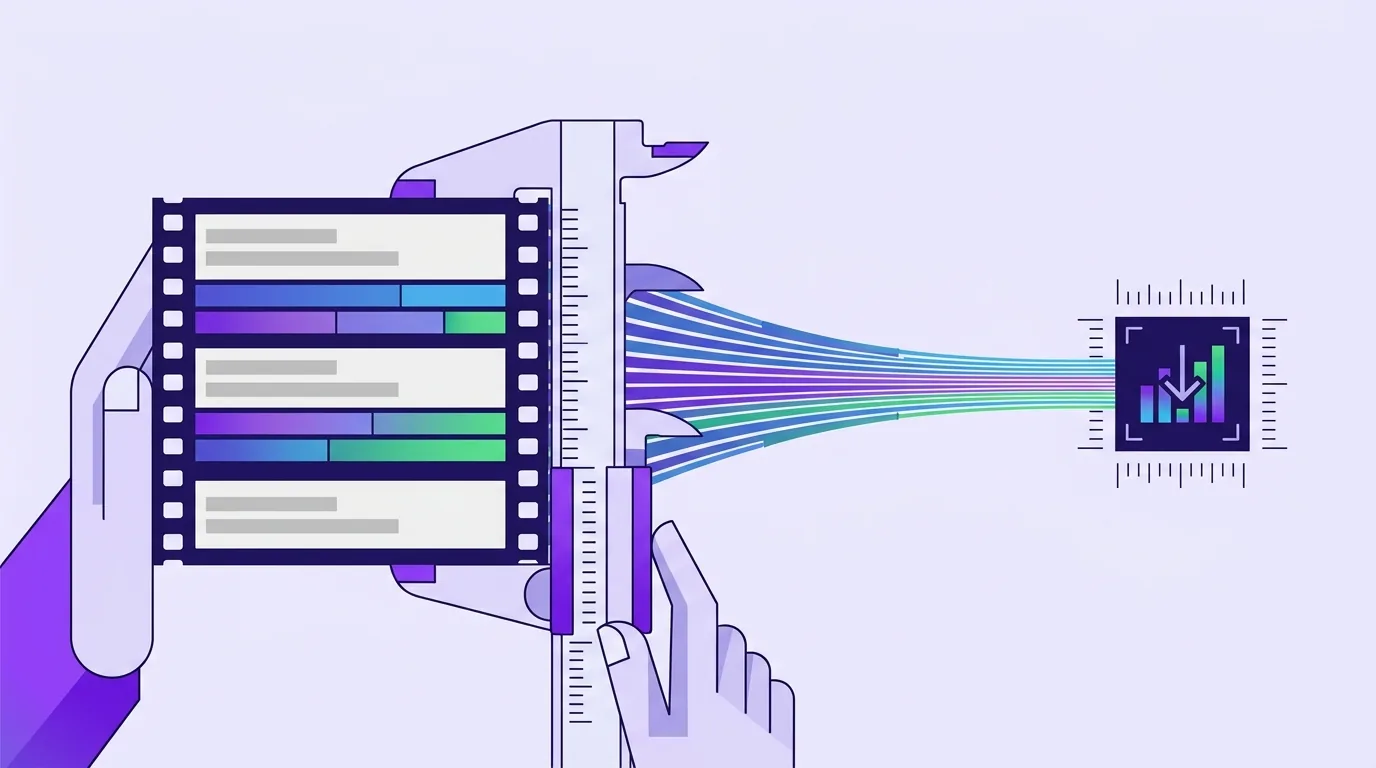
A target file size is not a quality setting, it is a budget you divide by time. Multiply the target in megabytes by 8,192 to get your total kilobits, divide that by the clip's length in seconds to get the total bitrate you can afford, then subtract the audio bitrate (128 kbps is a sensible default) to get the video bitrate. Encode with that number as an explicit bitrate rather than a quality preset, because a quality preset targets how the video looks and lets the size land wherever it lands. An 8 MB target on a 30 second clip leaves 2,057 kbps for video, which comfortably carries 720p. The same 8 MB spread over five minutes leaves 90 kbps, which carries nothing, and the honest answer there is to trim the clip.
That is the whole method. The rest of this page is the arithmetic written out, a table you can read your own answer off, and the reason the tools that promise an exact size either encode your file twice or quietly overshoot and try again.
How do you turn a target size into a bitrate?
File size is bitrate multiplied by duration. That equation and what it implies is laid out in video compression, by the numbers. Rearranged for a fixed ceiling it becomes:
total kilobits      = target MB × 8,192
total kbps          = total kilobits ÷ duration in seconds
video kbps          = total kbps − audio kbps
Two things about that 8,192 are worth saying out loud, because nobody says them and both matter.
First, it assumes the "MB" in your target means 1,048,576 bytes, which is what a chat app or a mail server almost always means when it prints a limit. Second, the shortcut treats a kilobit as 1,024 bits, while every encoder on earth treats -b:v 2000k as 2,000,000 bits per second. The mismatch means the number you get out of this formula is about 2.4% below the true ceiling. That is not an error to fix. It is free headroom, and you want it, because an MP4 also carries container structure that no bitrate setting accounts for.
A worked example. You have a 47 second clip and a 10 MB ceiling:
- 10 × 8,192 = 81,920 kilobits of budget
- 81,920 ÷ 47 = 1,743 kbps total
- 1,743 − 128 for audio = 1,615 kbps for video
Encode at 1,615 kbps and you land somewhere around 9.7 MB. Encode with a quality preset instead and you land wherever the footage decides.
The conversion table
Every cell below is that same three line calculation, with 128 kbps AAC stereo audio set aside. Read the number as the video bitrate you have left, and the label as the resolution that bitrate can realistically carry for typical H.264 footage.
| Clip length | 8 MB | 10 MB | 16 MB | 25 MB | 50 MB |
|---|---|---|---|---|---|
| 15 s | 4,241 / 1080p | 5,333 / 1080p | 8,610 / 1080p | 13,525 / 1080p | 27,179 / 1080p |
| 30 s | 2,057 / 720p | 2,603 / 720p | 4,241 / 1080p | 6,699 / 1080p | 13,525 / 1080p |
| 1 min | 964 / 480p | 1,237 / 720p | 2,057 / 720p | 3,285 / 720p | 6,699 / 1080p |
| 2 min | 418 / 360p | 555 / 480p | 964 / 480p | 1,579 / 720p | 3,285 / 720p |
| 5 min | 90 / trim it | 145 / 240p | 309 / 360p | 555 / 480p | 1,237 / 720p |
| 10 min | over budget | 9 / trim it | 90 / trim it | 213 / 240p | 555 / 480p |
The resolution column is a judgement, not arithmetic, so here are the bands behind it so you can argue with them: above 4,000 kbps carries 1080p; 2,000 to 4,000 carries 720p safely and 1080p if the shot barely moves; 1,000 to 2,000 is 720p; 500 to 1,000 is 480p; 250 to 500 is 360p; 100 to 250 is 240p and looks it. Content shifts every band. A slide deck recording or a static talking head stretches a band upward, sometimes by a whole step. Handheld footage, confetti, rain, grass, or gameplay with a moving camera pushes it down.
Why doesn't a quality slider hit an exact number?
Because a quality slider and a size target are answers to opposite questions.
Constant Rate Factor, the setting behind almost every "high / medium / small" control you have ever used, asks the encoder to hold a consistent perceived quality and spend whatever bits each scene needs to get there. A still frame costs almost nothing. A fast pan through foliage costs a great deal. CRF is the right tool most of the time, which is why our free compressor maps its three presets onto CRF 23, 28 and 32. But you cannot know the output size until the encode finishes, and the same preset on two different clips of the same length can produce files that differ by a factor of five.
Hitting a number needs the other mode: average bitrate, where you name the bits per second and the encoder rations itself to fit. FFmpeg documents these as the generic rate control options, b, maxrate, minrate and bufsize, and they apply across encoders. In practice you want all three of the first ones working together, because a bare average leaves the encoder free to spike enormously on one difficult second and make up for it later, which is exactly the behaviour that breaks a hard ceiling.
That is the mechanism behind every tool that claims exactness. There is no third option. Either it solves for a bitrate, or it encodes at a quality setting, checks the result, and encodes again with a different setting if it missed. The second approach is why a compressor sometimes takes suspiciously long on a small file.
What is two-pass encoding and when is it worth the wait?
Two-pass is the classic way to make an average bitrate look as good as it can. FFmpeg's own documentation for the -pass option describes it plainly: the first pass records statistics about the video into a log file, and the second pass uses that log to generate the video "at the exact requested bitrate."
The value is in the redistribution. Having already seen the whole clip, the second pass knows which seconds are hard and which are trivial, so it can starve the static intro and feed the action sequence, instead of guessing as it goes. On footage with wildly uneven complexity, a talk that cuts to a demo, a game clip that alternates between a lobby and a firefight, the difference is genuinely visible.
The cost is that you encode the file twice. On a server farm that is somebody else's electricity. In a browser tab it is your own laptop, and it roughly doubles a wait you are already sitting through.
So here is what we actually do, and why. VidClip's exact-size mode runs a single constrained pass: it solves for the video bitrate using the formula above, sets that as the average, caps the peak at 1.45 times it, and gives the encoder a two second buffer to work within. It also holds back 3% of the budget for container overhead before it does the division. Constraining the peak recovers most of what two-pass buys you on ordinary footage, and it does it in one pass instead of two, which is the trade that makes sense when the CPU doing the work is the one in front of you.
Where two-pass still wins is long clips with lumpy complexity and a tight ceiling. If you are squeezing a ten minute talk into 50 MB, the extra wait earns its keep. For a thirty second clip heading into a chat window, it does not.
How much of the budget should audio take?
Audio is a fixed subtraction that people forget until the file comes out over. At 128 kbps, a minute of stereo AAC is roughly 0.9 MB, and that is charged against your ceiling before a single video frame is drawn.
On a short clip that hardly registers. On a long one it is brutal. Look at the 5 minute row for an 8 MB target: the total budget is 218 kbps, and audio at 128 kbps eats more than half of it, leaving 90 kbps that no encoder can do anything useful with. Drop the audio to 64 kbps mono and you free up 64 kbps for video, which is a 71% increase in the picture budget from one setting.
Practical guidance:
- 128 kbps stereo is the default for a reason. It is transparent enough for music in the background of anything you are sharing casually.
- 96 kbps is fine for speech with a bit of ambience and buys back a little on longer clips.
- 64 kbps mono is the right answer for a talking head, a screen recording narration, or a lecture. Speech does not need stereo and rarely needs more.
- No audio at all is the right answer more often than people admit. A gameplay clip whose sound is a game you are not showing, or a screen recording with nothing but keyboard clicks, gets its entire budget back.
That last one is the largest single lever available on a short clip. On the 8 MB / 30 second cell, dropping audio takes video from 2,057 to 2,185 kbps, which is modest. On the 8 MB / 2 minute cell it takes 418 to 546 kbps, a 31% gain, and that is often the difference between 360p and 480p.
When is the target impossible without cutting length or resolution?
There is a floor, and it is worth naming rather than discovering. Below roughly 100 kbps of video, H.264 stops producing something you would call a video and starts producing a slideshow of coloured blocks. Our compressor refuses the job at that point rather than handing back a smear, which is why three cells in that table say "trim it."
When you hit the floor you have exactly four levers, and they are not equally priced:
- Duration. Linear, and completely free in quality terms. Halving the length doubles every other budget in the calculation. If ten seconds of a two minute clip are the reason you are sharing it, trim to those ten seconds and the problem dissolves.
- Resolution. Quadratic. Going from 1080p to 720p is 44% of the pixels, and from 1080p to 480p is 20%. Fewer pixels means each pixel gets more bits, which is why a downscaled 480p encode at 400 kbps looks far better than a 1080p encode at the same 400 kbps. Below about 500 kbps you should always be downscaling.
- Frame rate. Cheap for screen recordings, where 60 fps of a mostly static window is pure waste, and 30 or even 15 is indistinguishable. Expensive for camera motion, where dropping frames reads immediately as judder.
- Audio. Covered above. The fastest win on anything over a minute.
Pull them in that order. Trim first, downscale second, and only then start trading quality, because the first two cost you nothing you were going to notice and the last one always does.
Two specific applications of this arithmetic live on their own pages, if you are here for one of those jobs: hitting 10 MB for a Discord upload and getting under an email attachment cap. Both check the platform's current published limits and work the same budget backwards from them. Do check the platform's own help page yourself before you trust any figure, including ours, because these ceilings move.
FAQ
How do I compress a video to exactly 8 MB?
You cannot hit exactly 8 MB, and any tool claiming otherwise means "8 MB or just under." What you can do is land reliably close to it from below. Take 8 × 8,192 = 65,536 kilobits, divide by your clip's length in seconds, subtract your audio bitrate, and encode with that as an explicit video bitrate with a peak cap rather than as a quality preset. For a 30 second clip that is 2,057 kbps of video at 720p. Shave a few percent off the target first if the destination is a hard rejection rather than a warning.
Why is my output bigger than the target I set?
Almost always one of three things. The tool used a quality preset rather than a bitrate, so the size was never being controlled in the first place. Or it solved for the video bitrate and forgot to subtract audio, which puts you over by 128 kbps multiplied by the duration. Or nothing was reserved for container overhead: an MP4 carries an index and per frame structure that no bitrate setting covers, which is why our solver holds back 3% before dividing. On a long clip a single missing peak cap can also do it, if one difficult passage spent bits the rest of the file could not make up.
Does two-pass really look better?
On some footage, clearly. On plenty of footage, not enough to notice. The gain comes from redistributing bits between easy and hard sections, so it scales with how uneven your clip is. A ten minute recording that alternates between static slides and screen-heavy motion benefits a lot. A thirty second clip at a consistent level of activity benefits very little, and a well constrained single pass with a peak cap gets you most of the way for half the encode time. When the encoding is happening on your own machine, that halved time is a real part of the trade.
Can I compress to a size without re-encoding?
No. Compression to a target size means choosing how many bits describe each second of picture, and that is a decision only an encoder can make. What you can do without re-encoding is remove things: stripping the audio stream or trimming to a shorter section are both stream copy operations, instant and lossless, and either can be enough on its own. If a 12 MB clip needs to be 10 MB and the audio is not doing any work, muting it is a better answer than compressing it, because the picture stays untouched. See why lossless trims snap to keyframes for the one caveat on where a stream copy cut actually lands.
One useful piece of background if you are choosing what to export at all: MDN's web video codec guide covers why H.264 remains the safe choice for a file you are about to hand someone, and what "lossy" is actually costing you at each step.
Do it here
VidClip's compressor reads your file into browser memory and runs the encode on your own CPU. Nothing is uploaded, there is no queue, and there is no account. The free tier handles files up to 200 MB with a small mark in the corner of video exports, and its three quality presets are CRF 23, 28 and 32.
If you want the exact number rather than a preset, that is what VidClip Pro adds: type a ceiling in megabytes, and it solves the bitrate, sets the peak cap, and lands under your target in one pass. It also removes the size cap and the corner mark. Pro is $4 a month billed as $24 every six months, or $79 once for life.