
Compress Video for Discord: Hit 10 MB Without Nitro
By Mark Fulton · 2026-08-12 · 11 min read
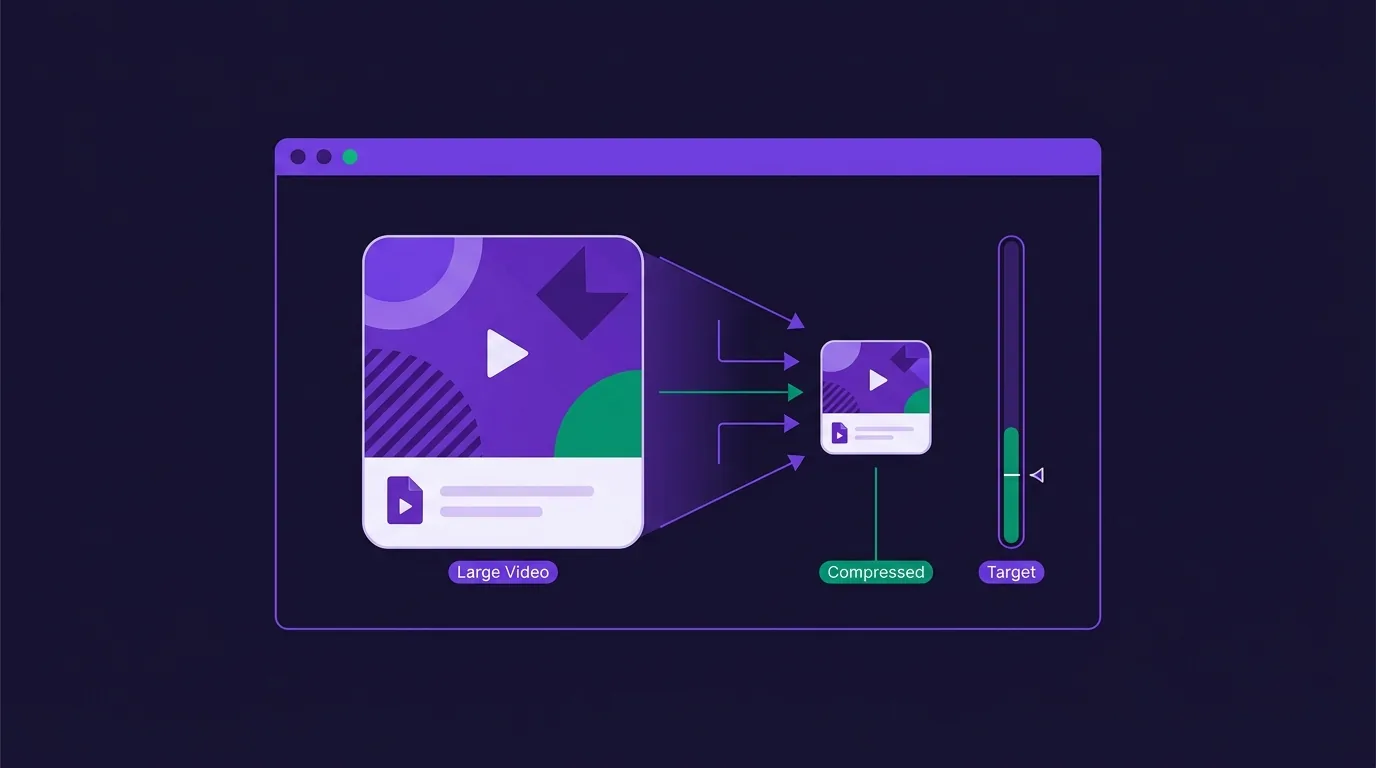
To fit a video under Discord's free 10 MB limit, work backwards from the number: 10 MB is 80 megabits, so budget about 9.5 MB (76 megabits), divide that by the clip's length in seconds to get the total bitrate you can afford, subtract 128 kbps for audio, and encode at the highest resolution that band supports (roughly 1080p under 15 seconds, 720p up to about a minute, 480p beyond that). Discord's own File Attachments FAQ states the 10 MB figure for non-Nitro accounts, and also warns that it is "currently experimenting with various file upload size limits", so check what your own client accepts before trusting any number, including this one.
That arithmetic is the whole job. Every other page ranking for this query asks you to upload a file to a server so it can shrink it, so that you can then upload it again to Discord. This one gives you the numbers, then does the encode on your own machine.
What is Discord's file size limit right now?
Checked against Discord's own support articles on 12 August 2026:
| Where the limit comes from | Maximum attachment | Discord's own page |
|---|---|---|
| Free account, no Nitro | 10 MB | File Attachments FAQ |
| Nitro Basic | 50 MB | What are Nitro & Nitro Basic? |
| Nitro | 500 MB | What are Nitro & Nitro Basic? |
| Server at Boost Level 2 (7 Boosts) | 50 MB, for all members, in that server only | Server Boosting FAQ |
| Server at Boost Level 3 (14 Boosts) | 100 MB, for all members, in that server only | Server Boosting FAQ |
Three honest caveats, because this is the part every competing page gets wrong:
- Discord says it is experimenting. The File Attachments FAQ carries a note at the top that Discord is experimenting with various upload size limits and that "select users may have the ability to upload larger file sizes." So some accounts will accept more than 10 MB with no subscription at all. If you have never tested yours, drag the file in and watch whether the client rejects it before you spend time re-encoding.
- The Boost limits are per-server, not per-account. A Level 3 server gives every member 100 MB in that server. The same file will bounce in a DM.
- Older numbers are still all over the web. Discord's free limit was 8 MB, then 25 MB, and is 10 MB today. Pages still quoting 25 MB are stale. Discord addresses the change directly in its Nitro FAQ, explaining that it reduced the free limit because "most users stick to files smaller than 10MB" and storage is expensive to maintain.
There is also a live experiment letting some servers buy a 250 MB limit as a "Larger File Uploads" perk for 5 Boosts. Treat that as an experiment, not a plan.
How do you work out the bitrate a target size allows?
File size is bitrate multiplied by duration, the equation the rest of this site is built on, laid out in video compression, by the numbers. Rearranged for a hard cap, it becomes a budget:
(target MB × 8) ÷ duration in seconds = total Mbps you can spend
total Mbps − audio bitrate = video bitrate
Budget for 9.5 MB, not 10. MP4 containers carry a few percent of muxing overhead, and there is a real difference between 10,000,000 bytes and 10,485,760 bytes that you do not want to discover at the send button. FFmpeg's own H.264 encoding guide works the identical calculation in its two-pass section, subtracting the audio bitrate from the total before setting -b:v.
Worked example one: a 30-second clip, free tier.
- 9.5 MB × 8 = 76 megabits of total budget
- 76 ÷ 30 seconds = 2.53 Mbps total
- 2.53 − 0.128 (a standard 128 kbps AAC audio track) = ~2.4 Mbps of video
2.4 Mbps is a comfortable 720p encode, and enough for 1080p if the shot is a mostly-static talking head. Thirty seconds is not a tight squeeze.
Worked example two: a 2-minute clip, free tier.
- 9.5 MB × 8 = 76 megabits
- 76 ÷ 120 seconds = 0.633 Mbps total
- 0.633 − 0.128 = ~505 kbps of video
505 kbps is 480p territory. Push 1080p into that budget and you get a smeared, blocky mess. The encoder has roughly one fifth of the bits it needs. Dropping audio to 64 kbps mono buys back another 64 kbps of video, which is worth doing when the audio is speech rather than music.
(These are arithmetic, not measurements. They tell you what bitrate fits; they do not promise the encoder will land exactly on it, which is the next section's problem.)
Which do you cut first: resolution, frame rate or quality?
In this order, because they are not equally expensive:
1. Duration. Free, and lossless if you cut on a keyframe. Ten seconds of dead air at the front of a 40-second clip is a quarter of your entire bit budget spent on nothing. Trim first, then compress, never the other way round.
2. Resolution. Quadratic. Halving both dimensions quarters the pixel count, so 1080p → 720p removes about 55% of the pixels and 1080p → 480p removes about 80%. On a Discord clip that most people watch in an inline player a few hundred pixels wide, this is close to free.
3. Frame rate. 60 fps → 30 fps roughly halves the number of frames the encoder has to describe. Cheap for a talking head. Expensive for gameplay, where the motion is the content. A 60 fps flick shot at 30 fps stops being the thing you wanted to show.
4. Quality (CRF). Last, because it is the one that shows. Per the FFmpeg guide, CRF runs 0 to 51 on 8-bit x264, 23 is the default, and moving the value by 6 roughly halves or doubles the resulting file. 17 to 18 is visually lossless; 17 to 28 is the "subjectively sane" range.
Here is the catch nobody mentions on the tool pages: CRF cannot hit a size target. It targets a quality level and spends whatever bits that takes, which is exactly why a "small" preset gives you 4 MB from one clip and 14 MB from the next. To guarantee a ceiling you need an explicit bitrate: either a two-pass encode, or a solver that computes -b:v from the duration the way the arithmetic above does. That is the difference between compressing and fitting.
What settings suit gameplay clips vs talking-head clips?
The ladder below assumes an H.264 MP4 with 128 kbps AAC audio, and it is a starting point rather than a guarantee. A confetti-filled Overwatch teamfight and a static webcam are not the same encoding problem at the same bitrate.
| Discord tier (limit) | Up to 15s | Up to 1 min | Up to 5 min | Up to 15 min |
|---|---|---|---|---|
| Free (10 MB) | 1080p, CRF 23, keep 60 fps | 720p, CRF 26 to 28 | 480p, CRF 28 to 30, 30 fps | Trim it or link it |
| Nitro Basic / Boost L2 (50 MB) | 1080p, CRF 20 to 23 | 1080p, CRF 23 | 720p, CRF 26 | 480p, CRF 28, 30 fps |
| Boost L3 (100 MB) | 1080p, CRF 20 | 1080p, CRF 20 to 23 | 1080p, CRF 26 | 720p, CRF 26 to 28 |
| Nitro (500 MB) | Send it untouched | 1080p, CRF 20 | 1080p, CRF 23 | 1080p, CRF 23 to 26 |
Then adjust for content:
Gameplay. Every pixel changes every frame, so inter-frame prediction saves the encoder almost nothing and CRF spends bits hard. Step down one resolution from the table and hold your frame rate: 720p60 reads better than 1080p30 for anything with aim or movement in it. Motion blur, particle effects and rain are the worst cases; grain-heavy shooters worse still.
Talking head, webcam, screen recording. The background is identical between frames and compresses almost to nothing. Step up one resolution from the table and drop to 30 fps without a second thought. Screen recordings of text are the extreme case. They hold 1080p at bitrates that would destroy gameplay footage, because sharp edges on a flat background are cheap right up until something scrolls.
Anything with burned-in text or subtitles. Stay at the higher resolution and accept a higher CRF instead. Small text is the first thing to turn to mush when you downscale, and it is the thing people were meant to read.
How do you do it without uploading the file anywhere?
Every result above this one in the search results works the same way: you hand your file to somebody's server, wait in a queue, and download it back. One of the popular ones states plainly that it keeps your upload for up to twenty minutes. For a Discord clip that is often a private call recording, a work screen share or somebody's kid, that is a strange trade to make in order to save eight megabytes.
VidClip's compressor runs ffmpeg.wasm (the actual FFmpeg encoder, compiled to WebAssembly) inside the browser tab. Your file is read into page memory, encoded on your own CPU, and handed back as a download. There is no upload bar because there is nothing to upload; the server only ever sent you the page. The same is true of every tool on the site except the Pro transcript tool, which necessarily sends audio to a speech model.
The practical route for a too-big clip:
- Trim the dead air off both ends first.
- Run the arithmetic above to see which resolution your remaining duration can afford.
- Compress at that resolution, starting with the middle quality target.
- Check the output size. Over budget? Down one resolution step, not up six CRF points.
Free exports carry a small semi-transparent VidClip mark in the corner and cap input files at 200 MB. Pro removes both, and replaces the trial-and-error loop in step 4 with an exact target: give it "9.5 MB", and it solves for the video bitrate directly (total budget, minus 3% container overhead, minus the audio track, divided by duration). One pass, one file, under the line. If the target is so tight that the video bitrate would fall below 100 kbps it tells you so rather than handing you a smear. Pro also opens the AI settings advisor if you would rather describe the clip than pick the numbers.
What if the clip is simply too long?
At some point arithmetic stops being kind. A five-minute clip at 9.5 MB has 76 megabits ÷ 300 seconds = 253 kbps total, of which 128 kbps is the audio. What is left will not carry moving video at any resolution worth sending. When you land there, the answer is not a better compressor:
- Cut it down. Almost every "too big for Discord" clip is a 25-second moment inside a four-minute recording. Trimming to the moment is the highest-quality compression there is: it removes bits without touching a single one of the ones you keep.
- Split it. Two 45-second messages under the cap beat one unwatchable three-minute file, and they read better in a channel anyway.
- Send audio only. If the value is in what was said, extract the MP3. A five-minute speech track at 128 kbps is under 5 MB.
- Send a GIF, deliberately. For a short silent moment, sometimes. Be warned that GIF is usually larger than the equivalent MP4, not smaller.
- Link it. Put the file somewhere it can live at full quality and paste the URL.
FAQ
Why does Discord reject my video?
Almost always size: the file is over your account's attachment limit, which is 10 MB on a free account per Discord's File Attachments FAQ, checked 12 August 2026. Two less obvious causes are worth ruling out. First, the limit applies to the whole message: several files attached together are counted against it, not each one separately. Second, Discord lists MP4 video as H.264, HEVC/H.265 or AV1; a container with an unusual codec inside may upload but refuse to play inline. Re-encoding to H.264 MP4 fixes the second problem and usually the first at the same time.
Can I send a video over 10 MB without Nitro?
Sometimes, yes. If the server is boosted to Level 2 or Level 3, every member gets 50 MB or 100 MB in that server, no subscription needed. Discord also says it is experimenting with upload limits, so some free accounts already accept more. Outside those cases the answer is no, and the practical alternatives are to compress the clip to fit, split it, or host it elsewhere and paste the link. Anything promising to "bypass" the cap is either one of those three things with a louder name, or a way to get your file quietly re-uploaded to a stranger's server.
Does compressing for Discord ruin the quality?
Not usually, and the reason is in the numbers. A phone records 1080p at roughly 15 to 25 Mbps because a camera cannot know what you will do with the footage later, and re-encoding can only ever remove information. A good 1080p H.264 encode looks fine at 3 to 5 Mbps. That gap means a short clip can lose 70 to 80% of its file size with nothing visible happening. It stops being free when the budget drops below what the resolution needs, which is the exact moment the arithmetic in this post tells you to downscale instead. Quality only "gets ruined" when you keep 1080p at a bitrate that cannot carry it.
Is it safer to link the file instead?
It depends what the file is, and it is worth thinking about for two seconds rather than none. Uploading to Discord means Discord stores it. Its Nitro FAQ says that, unlike other platforms, it keeps your files "for as long as you need them". Uploading to a third-party compressor first means one more copy on one more company's disks. That is the thing local, in-browser compression avoids entirely. Linking to a file you host yourself keeps the video off Discord's storage but generally means the link works for anyone who finds it. For anything sensitive, the least-copies path is: compress locally, send the finished file directly, skip the intermediaries.
Got a clip that Discord just bounced? Compress it here. It runs in your browser, nothing is uploaded, and there is no queue. Pro hits an exact MB target in a single pass instead of guessing.