
iPhone Videos Not Playing on PC? Three Ways to Fix It
By Mark Fulton · 2026-09-24 · 11 min read
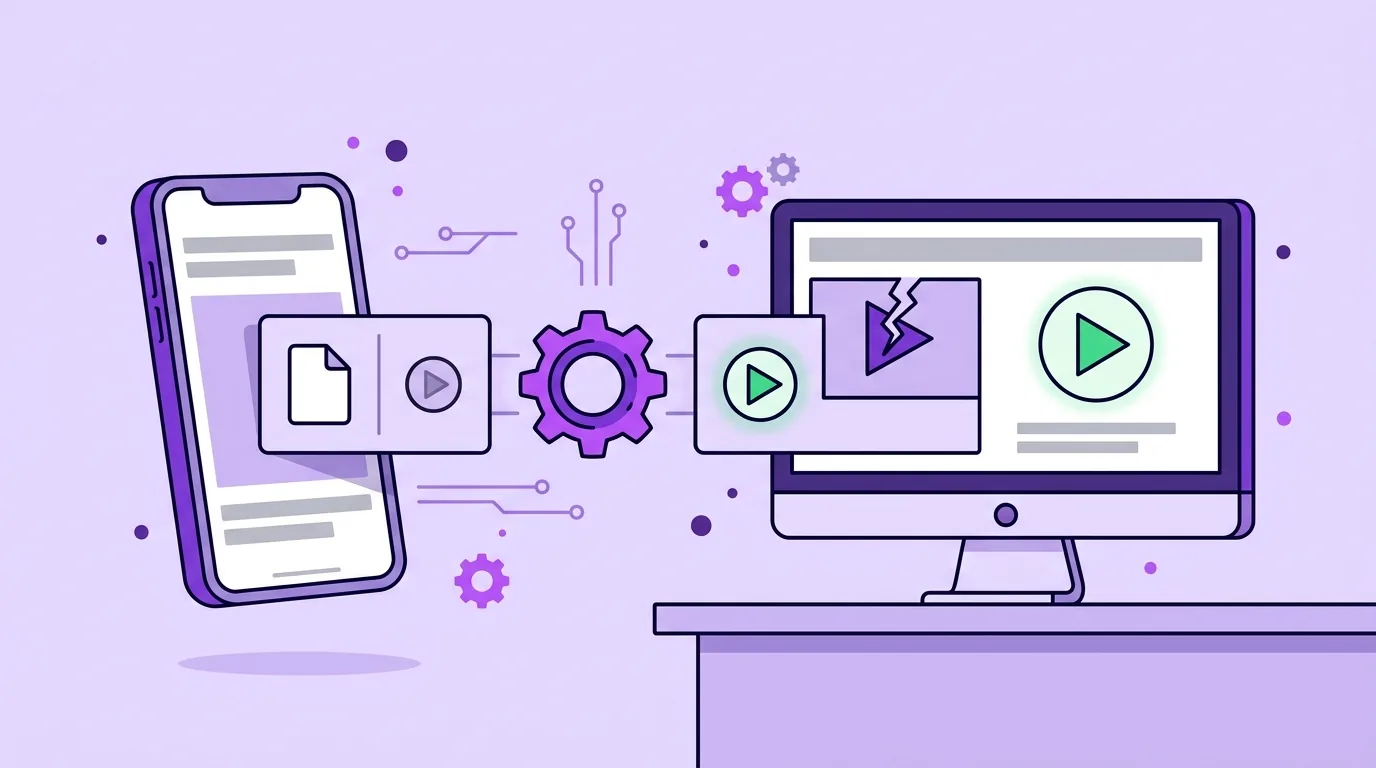
Your iPhone video is almost certainly not broken. Since the iPhone 7, iPhones have recorded video in HEVC (H.265) by default, and Windows does not decode HEVC unless the HEVC Video Extensions package is installed. So the same file plays perfectly on the phone and fails on the PC, usually as audio with a black picture or a "can't play" error. You have three free or nearly free ways out: install Microsoft's HEVC Video Extensions ($0.99 in the US Microsoft Store as of September 24, 2026), convert the clips you already have to H.264 MP4 so they play on any PC without it, or switch the iPhone to Most Compatible so future videos record as H.264 in the first place. Repair software is the wrong tool, because nothing inside the file is damaged.
The rest of this page is how to tell which of the real causes you have, and which fix fits it. If you have already decided to convert, you can convert video to MP4 in your browser, and converting HEVC to H.264 covers what the conversion does to quality, file size and HDR colour.
Why does the video play on the iPhone but not on Windows?
A video file is two things: a container (the .mov wrapper) and a codec (the compression used for the picture inside it). Windows understands the MOV container well enough. What it may not understand is the codec.
Apple's page on using HEIF or HEVC media on Apple devices lists the iPhones that record HEVC, starting with iPhone 7. On those phones, the default camera format is High Efficiency, which means HEVC video. HEVC makes smaller files than the older H.264 at similar quality, which is why Apple uses it. The trade is compatibility: decoding HEVC needs support that not every Windows install has.
That is why the symptom is so confusing. The audio in an iPhone clip is AAC, which Windows decodes out of the box. The picture is HEVC, which it may not. You get sound, a black frame, a music note icon, or an error telling you an extension is required. The file is fine. The PC is missing a decoder.
Two other causes produce similar symptoms and are worth ruling out, because the fixes differ:
- HDR colour. Recent iPhones record HDR video by default. Even when the codec problem is solved, HDR footage can look flat or washed out on a normal screen or in a player that ignores HDR information.
- An incomplete transfer. If a copy was interrupted, the file on the PC is truncated. No codec fixes a file that is missing half its data.
Which one do you have?
| What you see | Most likely cause | Fix |
|---|---|---|
| Sound plays, picture is black or a music note icon | HEVC video, no decoder installed | Install HEVC Video Extensions, or convert to H.264 MP4 |
| Error saying a codec or extension is required | HEVC video, no decoder installed | Same as above |
| Plays in one app (VLC, a browser) but not in another | That app relies on Windows' own decoders, which lack HEVC | Use the app that works, install the extension, or convert |
| Video plays but colours look grey, flat or washed out | HDR footage shown by a player or screen that treats it as normal video | Turn off HDR Video on the iPhone for PC-bound clips; see the HDR section below |
| File size is far smaller than the clip's length suggests, or it stops partway | Interrupted or incomplete copy | Copy it again from the phone; check the size matches |
| Older clips play, newer ones don't | Camera format or HDR setting changed at some point | Check Settings, Camera, Formats and Record Video |
| Stutters or drops frames but does play | Software HEVC decoding on a PC without hardware support | Convert to H.264, or play a lower resolution copy |
Prices and setting names in this table were checked against the Microsoft Store listing and Apple Support on September 24, 2026. Both change over time, so treat the price as dated.
How do you check whether a file is HEVC?
You do not need special software to get a strong answer. Start with the evidence you already have:
- The symptom. Audio with no picture on an iPhone clip almost always means HEVC. Container problems usually stop the whole file from opening, not just the picture.
- The phone's setting. On the iPhone, open Settings, then Camera, then Formats. If High Efficiency is selected, new videos are HEVC. If Most Compatible is selected, they are H.264.
- A player that decodes everything. If the clip plays in VLC but not in the Windows Photos or Media Player app, the file is sound and the missing piece is Windows' decoder.
If you want certainty, a media inspector reads the codec directly. With FFmpeg installed, ffprobe yourclip.mov prints each stream, and the video line will say hevc or h264. Look at the pixel format while you are there: yuv420p10le means 10-bit video, which is what iPhone HDR footage uses. That detail matters later.
Also check the file size against the clip length. A minute of 4K iPhone video is a large file. If yours is a few megabytes for a long clip, or the player stops at the same point every time, suspect the copy, not the codec, and transfer it again.
Should you install the codec extension or convert the file?
It depends on whose PC it is and how many files you have.
Install the extension if it is your PC and you will keep receiving iPhone video. The HEVC Video Extensions listing in the Microsoft Store is published by Microsoft Corporation and priced at $0.99 in the US store at the time of writing. Once installed, it lets Windows apps that use the system decoders play HEVC. Microsoft's own description is honest about the limits: on PCs without hardware HEVC support, "software support is provided, but the playback experience might vary based on the video resolution and PC performance." On an older laptop, a 4K HEVC clip may still stutter.
Convert if the file is going to someone else, or the PC is not yours. You cannot ask a client, a school office or a relative to buy a codec. An H.264 MP4 plays on essentially every Windows PC without any add-on. This is also the right choice for a work laptop where you cannot install Store apps, and for a PC that plays HEVC too slowly to be usable.
Do both if you are in doubt. Install the extension for your own viewing and convert the handful of clips you actually need to send.
Converting without uploading or installing anything
VidClip's Convert to MP4 tool runs FFmpeg compiled to WebAssembly inside your browser tab. The clip is read into browser memory and encoded on your own CPU, so there is no upload and nothing to install. Because the decoder lives in the page, it does not depend on Windows having HEVC support. A PC without the extension can still convert an HEVC clip.
I tested this before writing it, running the exact FFmpeg WebAssembly build the page loads against a five second, 1920x1080, 10-bit HEVC test clip in a MOV container with AAC audio. It decoded without complaint and produced an H.264 MP4 with AAC audio, 8-bit, same resolution. The encode took about 25 seconds on my machine. That is the honest cost of single-threaded encoding in a browser: short clips are quick, long 4K clips take real time, so convert the clips you need rather than a whole camera roll.
What the tool writes: H.264 video at CRF 21 (a quality-targeted setting that looks very close to the source), AAC audio at 128 kbps, and the MP4 index moved to the front so it starts playing immediately. Free exports are capped at 200 MB per input file and carry a small corner watermark. Pro ($4 a month, billed $24 every six months, or $79 once) removes both. If your clip is over the cap, trim it first or see how compression size actually works.
If you already have a MOV that is H.264 inside and just needs a different wrapper, that is a different job, and converting MOV to MP4 explains how to tell a rewrap from a real conversion.
Why can converted HDR clips look washed out?
This is the part most fixes skip, and it catches people after they think the problem is solved.
Apple's guide to changing video recording settings on iPhone says that on supported models the iPhone records video in HDR, and that other devices receive an SDR version of the same video when it is shared. That conversion happens when you share from the phone. When you copy the original file over a cable, you get the HDR original.
HDR video carries a wider colour range and a different brightness curve, and it relies on the player and screen to interpret it. A player that ignores that information shows the picture as if it were normal video, and the result looks grey, low in contrast and slightly faded.
Converting to H.264 does not automatically fix this. In my test, VidClip's converter produced 8-bit H.264 and carried the original colour tags across (BT.2020 primaries and the HLG transfer curve), but it does not tone map, which is the step that remaps HDR brightness into normal SDR range. Players that read those tags will display the clip properly; players that ignore them may still show it washed out.
So for footage headed to Windows PCs:
- For future clips, turn off HDR on the phone: Settings, then Camera, then Record Video, then turn off HDR Video. Your clips will be recorded as standard video and look the same everywhere.
- For clips already recorded, share them from the phone (AirDrop to a Mac, messaging, or cloud sharing) where Apple sends the SDR version, or use a desktop tool with an explicit HDR to SDR tone mapping option.
How do you stop the iPhone recording HEVC next time?
Apple gives you two switches, and they solve slightly different problems.
Change the camera format. Settings, then Camera, then Formats, then Most Compatible. Apple's HEIF and HEVC page states that with this setting "all new photos and videos will now use JPEG or H.264 format." Files get bigger, because H.264 is the less efficient codec, but every clip you record from then on plays on any PC. It does not change videos you already have.
Let the phone convert on transfer. Apple's same page describes a Photos setting, Settings, then Apps, then Photos, with a Keep Originals option under transfers to a Mac or PC. Keep Originals copies HEVC files as they are. The alternative, Automatic, lets the phone convert to compatible formats when you import over USB. If your PC imports are coming across as HEVC and you would rather they didn't, check that Keep Originals is not selected.
Which to choose? If most of your video ends up on Windows PCs or in other people's hands, set Most Compatible and forget about it. If storage on the phone is tight and you mainly watch on Apple devices, keep High Efficiency and rely on Automatic transfers, the extension, or converting the few clips that need to travel. Apple's page also notes that resolutions of 1080p or lower and frame rates of 60 fps or lower are more broadly compatible with older devices, so a 4K 60 fps HEVC clip is the hardest case for an older PC even with the extension installed.
For the longer version of the H.264 versus HEVC trade, including where HEVC quietly fails beyond Windows, read H.264 vs H.265.
FAQ
Why do my iPhone videos have sound but no picture on PC?
Because the audio and the video use different codecs. The audio is AAC, which Windows plays natively. The video is HEVC, which Windows only decodes with the HEVC Video Extensions installed. Without that decoder, the player handles the part it understands and shows a black frame for the rest. Install the extension or convert the clip to H.264 MP4.
Is the HEVC extension free on Windows?
The HEVC Video Extensions package from Microsoft Corporation was listed at $0.99 in the US Microsoft Store on September 24, 2026. If a PC already has HEVC support installed, iPhone clips simply play. If yours doesn't and you'd rather not pay, VLC plays HEVC on its own, and converting to H.264 MP4 in the browser costs nothing on the free tier.
Does converting HEVC to H.264 lose quality?
Any re-encode is technically lossy, because the picture is decompressed and compressed again. At a high quality setting like CRF 21 the difference is very hard to see in normal viewing. The file will usually be larger than the HEVC original, since H.264 needs more bits for the same quality. Keep your originals and convert copies for sharing. HDR footage is the exception worth watching: an 8-bit H.264 copy cannot hold the full HDR range, as covered above.
What does "Most Compatible" change on iPhone?
It switches the camera's recording format from HEVC and HEIF to H.264 and JPEG for every new photo and video. It does not convert anything already on the phone. The cost is larger files; the benefit is that your clips play on Windows PCs, older devices and upload forms without any extra software.
The short version
Your iPhone clip is fine. If it has sound but no picture on Windows, it is HEVC and the PC lacks a decoder. Install the extension for your own PC, switch the iPhone to Most Compatible for the future, and for the clips you need to share today, convert them to an H.264 MP4 in your browser. No upload, no install, and the result plays on any PC.