
Transcribe Video to Text: What Leaves Your Machine
By Mark Fulton · 2026-09-22 · 10 min read
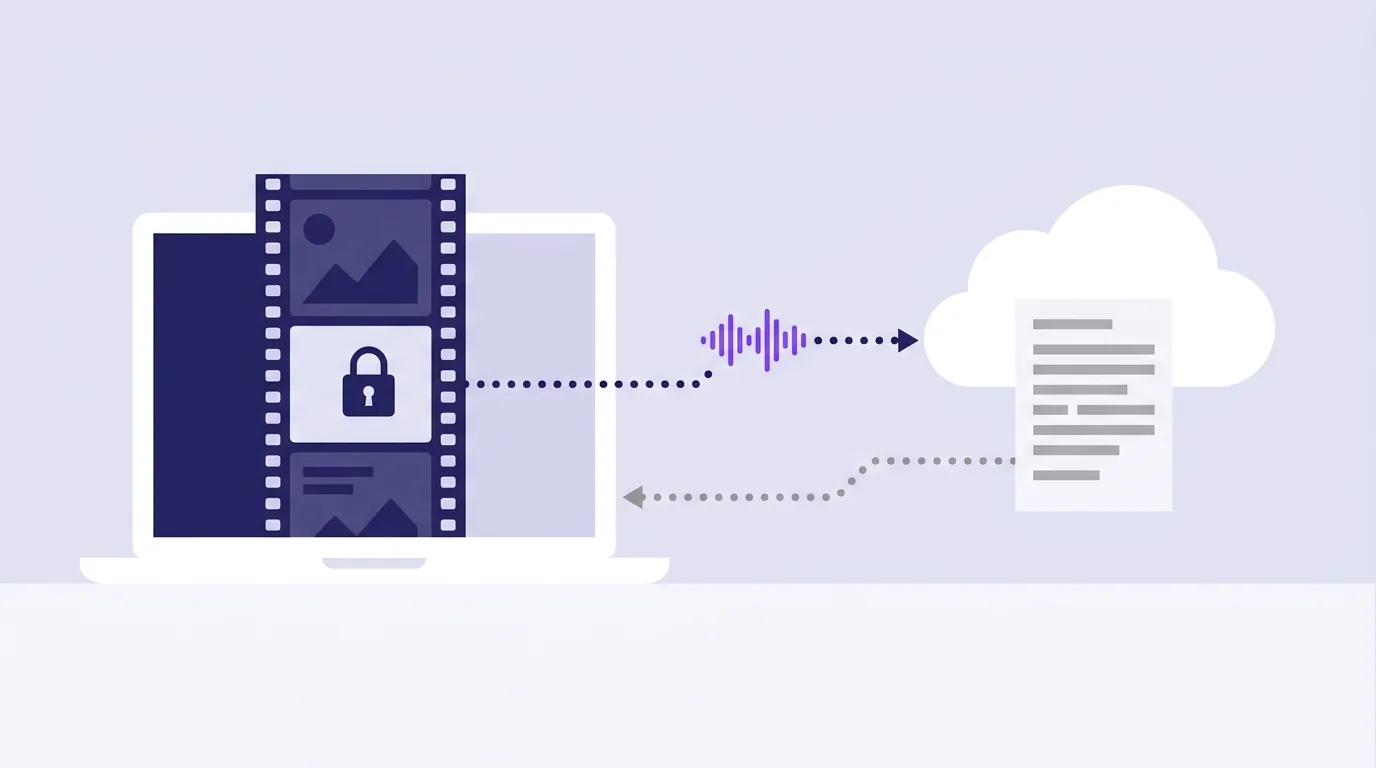
To transcribe video to text, you strip the audio out of the video and run it through a speech recognition model, which returns the words as text. The honest catch is that a good speech model is far too large to run inside a normal web page, so almost every online transcriber sends your recording to a server. What you can control is how much gets sent. On VidClip's transcript tool, your browser extracts the audio locally, drops the video track entirely, and shrinks the speech to mono 16 kHz at 32 kbps before anything moves. Only that small audio file leaves your machine, and only after you tick a box for that specific file.
Every other tool on this site runs on your own computer and never uploads a byte. This is the one exception, so it's worth being exact about what happens, stage by stage.
Why can't speech recognition run in a browser?
It can, technically. It just isn't practical for a tool you open once and use.
Trimming, compressing or converting a video is arithmetic that a WebAssembly build of ffmpeg can do on your CPU. The program is a few tens of megabytes and it's been doing this work for decades. Speech recognition is different. An accurate model is a large set of learned weights, in the hundreds of megabytes, and it wants a lot of memory and ideally a GPU to run at a reasonable speed. Shipping that into a web page means a huge download before the first word is recognised, and the smaller models that would download quickly are noticeably worse on accents, crosstalk and background noise.
So the realistic options are:
- Run a model on your own computer as installed software. Fully private, but it's a setup job, and speed depends on your hardware.
- Send the audio to a server that runs a large model. Fast and accurate, but the audio leaves your machine.
VidClip's transcript tool takes the second route, and says so on the tool page before you pick a file. The work it does do locally is the part that decides how much gets sent.
What exactly gets sent when you transcribe?
Here's the whole transcript job, in order, with where each piece of data lives at every step. This is taken from how the tool is built, not from a marketing summary.
| Stage | What happens | On your machine | On a server |
|---|---|---|---|
| 1. Pick a file | You choose an audio or video file | The original file, in browser memory | Nothing |
| 2. Extract locally | ffmpeg (running in your browser) reads the file and drops the video track | Original file plus a new audio stream | Nothing |
| 3. Downsample locally | Audio is converted to mono, 16 kHz, 32 kbps MP3 | A small speech-only MP3 | Nothing |
| 4. Size check | If the MP3 is over 25 MB, the job stops and asks you to split the file | Same | Nothing |
| 5. Opt in | You tick "I understand the audio from this file will be uploaded" | Same | Nothing |
| 6. Send audio | The MP3 and your Pro licence key go to VidClip's transcription endpoint | Same | The speech MP3, held in memory for the request |
| 7. Recognise | The endpoint passes the audio to a speech recognition service and gets plain text back | Same | Audio at the recognition service, then text |
| 8. Structure | The text (not the audio) is sent to a language model that adds a title, summary, headed sections and action items | Same | Transcript text only |
| 9. Return | You get the organised transcript and the raw text; the request ends | The transcript, downloadable as .md or .txt | Nothing kept by VidClip |
A few details that matter:
- The video never leaves. The extraction step uses ffmpeg's
-vnflag, which discards video entirely. A 400 MB screen recording goes out as a few megabytes of speech. The channel and sample rate settings are standard ffmpeg audio options, documented in the ffmpeg manual if you want to see exactly what-ac 1and-ar 16000do. - The audio isn't written to disk or logged on VidClip's side. It's passed through to the recognition service and dropped when the request finishes. The recognition service is a third party, and that's true of every server-side transcriber, not just this one.
- The original file is never sent. What goes up is a newly encoded audio file, always named
speech.mp3, with no video frames or thumbnail in it. - 16 kHz mono is not a quality shortcut. It's the format speech models are built around. Stereo and higher sample rates add bytes without adding words.
At 32 kbps, one minute of speech is about 240 KB, so an hour-long meeting goes out as roughly 14 MB of audio.
How does that compare with typical free transcribers?
Most free online transcribers ask you to upload the file itself. That's not sinister, it's just the simplest way to build one. What differs is what they keep and for how long. As of September 2026, according to their own pages:
- UniScribe lists its free plan at 120 minutes of transcription a month, files up to 30 minutes each, and a 30-day retention period for media files.
- HappyScribe says you start with free minutes, and that files are encrypted in transit and at rest.
- CaptionX says no account is needed for files up to 15 minutes, a free sign-in raises that to about 60 minutes, and that your file isn't stored.
None of those are bad answers. The questions to ask of any transcriber are the same: is the whole file sent or just audio, how long is it kept, and does it feed anything else. If a page doesn't answer those, assume the full file goes up and stays a while.
How does a structured transcript differ from raw speech-to-text?
Raw speech recognition output is one long block. It usually has punctuation, but no paragraphs, no headings and no sense of where one topic ends and the next begins. For a two-minute voice memo that's fine. For a 50-minute call it's close to unreadable.
The transcript tool runs a second pass on the text to organise it:
- A title of eight words or fewer, and a one to three sentence summary.
- Headed sections split at natural topic shifts, usually two to six for a normal recording.
- Clean paragraphs, with transcription artefacts fixed: missing punctuation, doubled filler words like "the the".
- Action items, only when someone actually states a task or next step. If nobody does, the list is empty rather than invented.
- Speaker labels, only when distinct speakers are clearly identifiable from the text.
The formatting pass is told to preserve the speaker's words and not to add facts, names or numbers. It formats, it doesn't rewrite. You can export the organised version as Markdown, or download the untouched raw text as a .txt file, and you can flip to the unformatted view on the page at any time to check one against the other.
Two honest limits. There are no timestamps and no SRT or VTT export, so if you need subtitles for a video editor, this isn't that tool. And on very long recordings, the organising pass works from the first 48,000 characters of text, so the structured version of a marathon recording may cover only the opening portion. The raw .txt download always contains everything that was recognised.
Transcripts are also an accessibility tool, not just a convenience. The W3C's guidance on transcripts describes them as a text version of the speech and non-speech audio needed to understand the content, and notes who depends on them: people who are Deaf or hard of hearing, and people who process written text better than audio. If you're publishing the transcript alongside a video, read it back and add anything the words alone miss.
What should you never send for transcription?
Some recordings shouldn't go to any online transcriber, however it's built. A rough decision tree:
- Does the recording contain someone else's personal information you're responsible for? Patient consultations, HR interviews, legal advice, customer calls with account details. If yes, check your obligations first. When a service handles personal data on your behalf, data protection law usually treats it as a processor acting for you, and the UK regulator's explanation of controllers and processors is a clear primer on what that means. A browser tool you picked on a whim is not a processor agreement.
- Would it cause real harm if it leaked? Unannounced deals, passwords read aloud, anything under NDA. If yes, don't send it anywhere. Transcribe it on your own hardware or by hand.
- Did everyone on the recording agree to it being recorded and processed? If you're not sure, sort that out before transcribing.
- None of the above? Lectures, your own voice notes, podcast episodes you're publishing anyway, meetings with no sensitive content. Server-side transcription is a reasonable trade.
For the "don't send it" cases, the private route is an open-source speech recognition model installed on your own computer. It's more setup and slower on modest hardware, but nothing leaves the room. You can still use VidClip to prepare the audio: Video to MP3 extracts the soundtrack entirely in your browser, with no upload, and the walkthrough on extracting audio from video covers the settings. For a wider look at how to tell whether any online tool uploads your files, see are online video converters safe.
How do you handle a recording longer than the limit?
The transcript tool's ceiling is 25 MB of compressed audio per run. At 32 kbps mono that works out to about 100 minutes of speech, which covers most meetings, lectures and podcast episodes in one go. The tool checks the size after extracting the audio and before sending anything, so an oversized file costs you nothing but the extraction time.
For anything longer:
- Split the video into parts of 90 minutes or less. Our guide to splitting a video into parts shows how to cut at clean points without re-encoding, using the trim tool.
- Transcribe each part separately. Set the spoken language rather than leaving it on auto-detect if the parts are short or noisy, since a language hint improves accuracy on difficult audio.
- Join the text afterwards. Download the raw .txt from each run if you want one continuous document, or the Markdown if you'd rather keep each part's sections and summary.
Cut at a pause rather than mid-sentence where you can. A word split across two files is often lost from both.
There's also a daily cap of 40 transcriptions per licence, which is well beyond what a person transcribing their own recordings needs, and it resets within 24 hours.
Try it on something you're happy to send
If you've got a recording that passes the decision tree above, VidClip's transcript tool is part of Pro, at $4 a month billed $24 every six months, or $79 once for life. Your browser does the extraction and downsampling, the video stays on your machine, and the audio only leaves after you opt in for that file. Everything else on the site, from compressing to converting, stays fully local with no upload at all. See what Pro includes.
Frequently asked questions
Is free online transcription private?
Not usually in the way people assume. Almost every free transcriber uploads your file to a server, because accurate speech models are too big to run in a page. Privacy then depends on what's sent (the whole video or just audio), how long it's kept, and who processes it. Read the service's own page for those three answers before sending anything sensitive.
How accurate is automatic transcription?
Good on clear speech from one speaker close to the microphone, and noticeably worse with background noise, overlapping speakers, heavy accents or quiet audio. Naming the spoken language instead of relying on auto-detect helps on short or noisy clips. Always read a transcript back before quoting it or relying on it for anything that matters.
Can I transcribe a video without uploading it?
Yes, but only with software that runs a speech model on your own computer, such as an open-source recognition model installed locally. Browser-based tools that promise transcription almost always send something to a server. On VidClip, what's sent is a downsampled speech-only audio file, never the video, and only after you opt in per file.
How long a recording can be transcribed at once?
On VidClip, about 100 minutes per run, set by a 25 MB limit on the compressed audio. For longer recordings, split the video into parts first and transcribe each one, then join the text.